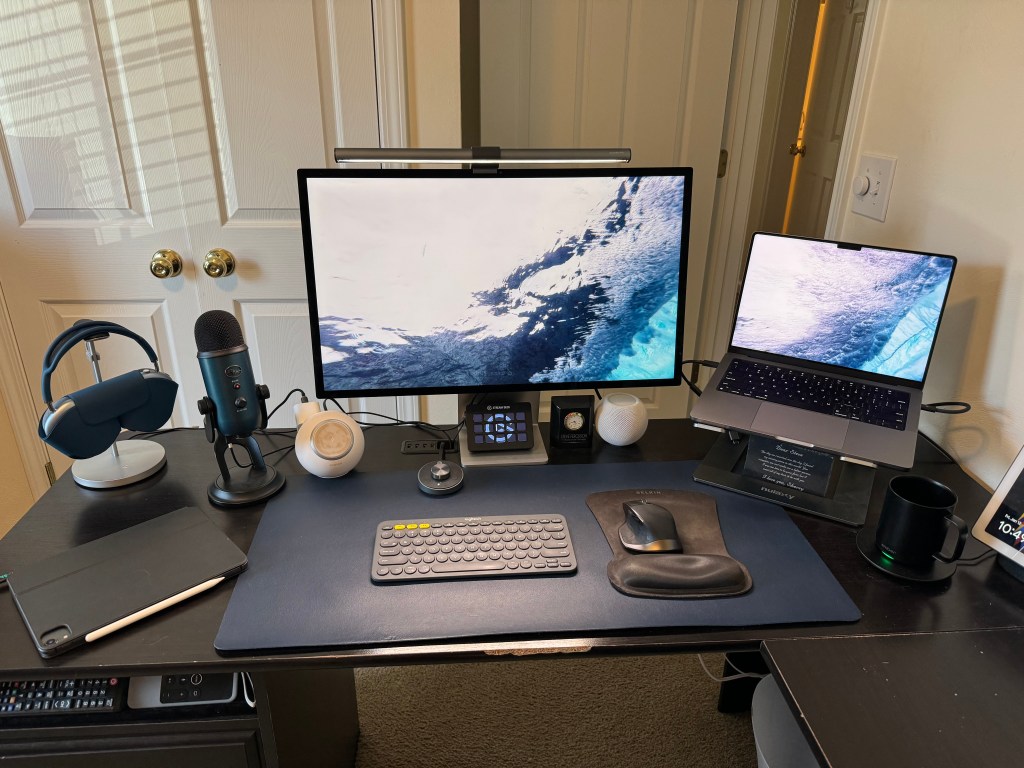
I thought I would put this post here more as a way for me to keep a running list of what I have and what I’m using. This is by no means a complete list, but I’ll update it over time in an attempt to get it there.
Computers
I used to use 2 different computers, a primary more powerful desktop and lesser powerful portable laptop. With the introduction of Apple Silicon I’ve decided to collapse both of those into a more powerful laptop as my primary computer. I’ve recently gotten the Apple MacBook Pro “M2 Pro” 10 CPU/16 GPU 14″. I opted for the Pro with the M2 Pro processor to have native support for multiple monitors. I have the model with 16GB of RAM and a 512GB SSD storage. This has been an amazing laptop so far and can’t recommend it highly enough. I’ve also picked up the Apple Studio Display and I’ve replaced my dual monitor setup with the single 27″ monitor and the laptop on a laptop stand. This is probably the best monitor I’ve ever owned and fits in perfectly with my setup. I’ve also been plugging this monitor into my work Dell laptop and it’s working just as you would expect.
I also have a gaming computer that I built circa 2019. While it’s now 6 years old it’s still working well for things that require Windows, as well as gaming via Steam, Xbox, and retro emulation using LaunchBox. If you are a gamer and enjoy retro games you should definitely check out LaunchBox. It’s been by far the best and easiest way to enjoy retro games. My gaming computer is using the following hardware:
–MSI MPG Z390 GAMING PRO CARBON ATX LGA1151 Motherboard
–Intel Core i7-9700K 3.6 GHz 8-Core Processor
–Corsair Vengeance RGB Pro 32 GB (2 x 16 GB) DDR4-3200 CL16 Memory
–Samsung 970 Evo Plus 1 TB M.2-2280 PCIe 3.0 X4 NVME Solid State Drive
-NVIDIA – GeForce RTX 4070 SUPER 12GB GDDR6X Graphics Card – Titanium/Black
–DIYPC Ranger-R4 ATX Mid Tower Case
Peripherals
While docked at the desk, my keyboard is the Logitech MX Keys Mini. While it’s not a perfect keyboard it is very affordable and has pairings to 3 different devices which allows me to swap between my personal Mac laptop and my work Dell laptop. The mouse I have at my desk is the Logitech MX Master 3 Mac. I also keep the Apple Magic Trackpad to the side to use for any gestures that may be easier on the trackpad versus using the mouse.
On my gaming computer, I’m using the Razer – Huntsman Elite Full Size Wired Opto-Mechanical Clicky Switch Gaming Keyboard with RGB Chroma Backlighting – Black, and for a mouse I’m using the Razer – Basilisk V2 Wired Optical Gaming Mouse – Wired – Black.
Phone
I recently upgraded (December 2023) to an Apple iPhone 15 Pro 512GB in Titanium Blue. I have found iOS to be very stable and reliable in the years that I’ve been using it. My previous phone was a 128GB model and I regretted not getting more storage, so made sure to remedy that this time around. (Who ever thought that 128GB of storage on a phone would be considered “small”)
Tablet
I have a space gray Apple iPad Pro (2018) in 256GB with Verizon cellular attached to the Magic Keyboard and Apple Pencil. The iPad had become my right hand man so to speak as I would have it with me everywhere I go. I find the extra screen real estate compared to the iPhone worth the extra weight and bulk of the iPad.
I also have and use an Apple iPad mini 6th generation for content consumption and casual usage. The size of it is great which makes it much more portable than the 11-inch one.
Software
I’ve been slowly building a list of useful software tools to use in my daily activities. I’m always on the lookout for anything that can help make things easier or more streamlined.
- 1Password – These days, a password manager is a must. With website breaches becoming more and more common, using the same password on multiple sites is a terrible idea. With desktop and mobile OSes embracing password managers and integrating them more naturally for use, the argument against using one is becoming harder and harder. I’ve chosen 1Password and have used it for years. It’s a subscription and I pay each year for the family plan. It is also OS agnostic as there’s clients for every main platform. Highly recommended.
- Alt-Tab – This is a useful tool to give you a better look at switching apps on the Mac, much like it does on the Windows side. You get a thumbnail of the screen from each app. And better yet, it’s free!
- Bartender 4 – This app is another Mac app that cleans up your menu bar, and displays only the ones you want, but tucks away the others for when you need them. It’s a must have if you have sprawl up there, and keeps things organized. It’s also highly customizable, (e.g. you can display the battery icon while it’s running on battery, but it tucks it under the menu when charging). It’s a $16 one time fee but once you adjust it’s hard to stop using it.
- Etcher – When working with ISO files to do USB bootable drives. Etcher is a simple but effective application to get that done. There’s always the CLI option of dd for anyone that’s versed in command line but if you’re looking for a simple interface to do the same thing check out Etcher.
- ExpressVPN – I signed up for a trial of ExpressVPN and now it’s a constant thing I make sure to install on all of my devices. With public hotspots not very trustworthy it’s nice to have a VPN you can use. ExpressVPN makes it seemless and most of the time I don’t even realize I’m on VPN until I check due to how fast it is.
- iMovie – I’ve been starting to play around with video editing and recording more video. So I’ve started using iMovie as a way to cut and build custom movies with it.
NetNewsWire – I’ve been using this on the PC and on mobile/tablet for a few years now. For an RSS reader it’s a great tool and is very fast at downloading and swiping through articles.- Quicken Classic – Yes, I am that guy that still manages his finances via a local Quicken application on the computer. I know most have moved to cloud based or online programs for this, and I also use Mint for several things in conjunction with this. But the ability to have a calendar with all my bills laid out, reports of past spending, and having it all local to me, is still a nice thing for me. Maybe one day I’ll join the others but for now I still enjoy having this.
- Reeder – I have recently switched my RSS app over to Reeder on both the Mac and the iOS/iPadOS side. I really like the look and feel of it and appreciate the effort they’ve done to make this an enjoyable app
Note: some links above are tied to my Amazon affiliate account and I do get paid a small fee from following the links. I appreciate your support.
 Steve's Stuff